| | Marketing Campaigns | Quick Campaigns |
| Campaign activities | Can distribute multiple activities | Can only distribute one activity |
| Reports | Several built-in reports are available out of the box | No built-in reports available |
| Templates | Can save campaigns as templates and create campaigns from templates | Cannot use templates with quick campaigns. |
| ROI | Can track financial information and measure ROI | No financial information tracked/ROI. |
| Planning | Can create multiple planning activities associated with the campaign | No planning activities can be created / associated. |
| Products / Price Lists | Can associate target products and price lists | Cannot associate target products or price lists |
Monday, October 3, 2011
Differences between Marketing Campaign and Quick Campaign in CRM 2011

Monday, September 26, 2011
Problems with plugins on connection entity in CRM 2011
If you have registered a plugin on the connection entity, you might have experience some odd behaviour, such as the plugin getting called twice or the plugin to run under the SYSTEM user always. These are probably side effects of how connections are designed. Let me explain what happens behind the scenes when you create a connection so the problem will be more evident. Assume I create a connection between an opportunity and a user and I have a plugin that triggers on “Create” and “Update” of connection. The first thing to note is that when you “connect” two records you are in fact creating two connection records (one in each direction) so this happens sequentially inside the same transaction:
Now depending on your business logic you might want to avoid the plugin from triggering in step2 (or maybe not). If you do, you can use this trick inside your plugin to make sure that the plugin executes only for step1:
The other tricky aspect of plugins with connections is that sometimes your plugin gets called in the context of the SYSTEM user (even if you specify Calling User or another user in the Plugin Registration Tool). This happens at least every time you have a plugin registered on “Delete” of connection. The only workaround that you have, is that from your plugin, when you create the CRM service you impersonate back the initiating user:
I hope you find this helpful!
- The connection from the opportunity to the user is created (your plugin triggers here as expected). Temporarily the “relatedconnectionid” attribute is set to the id of the connection getting created.
- A reciprocal (corresponding) connection is created from the user to the opportunity which uses the corresponding connection role if available (your plugin triggers again because of the create, but the primary entity here is a different connection record)
- Once the second connection is created then the system updates the first connection record to set the RelatedConnectionId to the connection created in step 2 (your plugin triggers again because of the update)
Now depending on your business logic you might want to avoid the plugin from triggering in step2 (or maybe not). If you do, you can use this trick inside your plugin to make sure that the plugin executes only for step1:
Entity creatingConnection = (Entity)context.InputParameters["Target"];
EntityReference relatedConnection = creatingConnection["relatedconnectionid"] as EntityReference;
if (relatedConnection != null && creatingConnection.Id != relatedConnection.Id)
{
// Creating reciprocal connection
// Return here if the plugin should not execute in step2.
}
EntityReference relatedConnection = creatingConnection["relatedconnectionid"] as EntityReference;
if (relatedConnection != null && creatingConnection.Id != relatedConnection.Id)
{
// Creating reciprocal connection
// Return here if the plugin should not execute in step2.
}
The other tricky aspect of plugins with connections is that sometimes your plugin gets called in the context of the SYSTEM user (even if you specify Calling User or another user in the Plugin Registration Tool). This happens at least every time you have a plugin registered on “Delete” of connection. The only workaround that you have, is that from your plugin, when you create the CRM service you impersonate back the initiating user:
IOrganizationServiceFactory serviceFactory = (IOrganizationServiceFactory)serviceProvider.GetService(typeof(IOrganizationServiceFactory));
IOrganizationService service = serviceFactory.CreateOrganizationService(context.InitiatingUserId);
IOrganizationService service = serviceFactory.CreateOrganizationService(context.InitiatingUserId);
I hope you find this helpful!
Monday, September 19, 2011
How to qualify a lead to a contact, account and/or opportunity using CRM 2011 process (workflow or dialog) ?
The CRM 2011 process designer has limited amount of functionality that it supports (create / update / set status), but if you wanted to add a workflow step to qualify a lead you would have to register your own plugin that implements the logic.
Fortunately, there is a solution that already implements this for you. I have extended the CRM 2011 Workflow Utilities to include a step to qualify leads. All you need to do is to download the managed solution from Codeplex and install it in your CRM organization (only supported in On Premise for now). Once you install the solution, you can go to your process designer and you will notice a “QualifyLead” step is now available:

When you insert the Qualify Lead step to your process you have to click the “Set Properties” button to configure how you want to qualify your lead. You have the following parameters:
- Lead (the lead that you want to qualify).
- Status of the lead after qualifying it (by default it will set the status to “Qualified”).
- Create Contact (whether you wand to generate a contact for the qualified lead or not).
- Create Account (whether you wand to generate an account for the qualified lead or not).
- Create Opportunity (whether you wand to generate an opportunity for the qualified lead or not). If you specify “True” then you must also specify the opportunity customer and currency.
- Opportunity Currency (use only if creating an opportunity).
- Parent Account of Opportunity (use only if creating an opportunity).
- Parent Contact of Opportunity (use only if creating an opportunity and no parent account is specified).
This is an example of how the step might be configured:

The cool thing is that the custom step will output the entities that were generated by the qualification process so you can edit the generated entities in later steps of your process. For example, if I am qualifying a lead to an opportunity and then I need to edit the opportunity that was created I can just insert an update step after:

I hope you find this useful!
Wednesday, September 14, 2011
How to add configuration parameters to plugins in CRM 2011
When you design plugins, you often need an input parameter or a configuration for the plugin execution which can be easily updated without having to re-compile and/or re-register the plugin. For example, I have a plugin that sends a request to a SharePoint web service and I would like the endpoint URL for the web service to be configurable. In that case you have the following options:
1. Use a “Configuration” custom entity
This is perhaps the most popular method but it can be expensive to maintain. You can create a custom entity containing the configuration information so the plugin will read the data in the custom entity by retrieving the record each time it executes.
PROS:
2. Use the plugin step “Configuration”
When you register a plugin step, there is a field where you can specify some configuration parameters for the plugin execution:

Then in the Constructor of your plugin class you will get the configuration value which you can use later in the Execute method:
PROS:
3. Use the plugin step “Secure Configuration”
This is similar to the step Configuration except that the configuration data is stored in a separate entity which can be secured.
PROS:
4. Use a Web Resource
You can store configuration information in web resources, for example you might have some XML configuration stored in a web resource and have your plugin read the web resource each time it executes.
PROS:
1. Use a “Configuration” custom entity
This is perhaps the most popular method but it can be expensive to maintain. You can create a custom entity containing the configuration information so the plugin will read the data in the custom entity by retrieving the record each time it executes.
PROS:
- Easy to update the value (can be done using the CRM UI).
- Can configure privileges to control who has access to the configuration entity.
- Configuration is data instead of metadata, therefore, the configuration data cannot be transported with the solution. You will need to create the configuration record in each environment.
- You might need to control that only one configuration entity can be created.
2. Use the plugin step “Configuration”
When you register a plugin step, there is a field where you can specify some configuration parameters for the plugin execution:

Then in the Constructor of your plugin class you will get the configuration value which you can use later in the Execute method:
public abstract class BasePlugin : IPlugin
{
private string _secureConfig = null;
private string _unsecureConfig = null;
public BasePlugin(string unsecureConfig, string secureConfig)
{
_secureConfig = secureConfig;
_unsecureConfig = unsecureConfig;
}
public void Execute()
{
// Use the configuration here
}
}
{
private string _secureConfig = null;
private string _unsecureConfig = null;
public BasePlugin(string unsecureConfig, string secureConfig)
{
_secureConfig = secureConfig;
_unsecureConfig = unsecureConfig;
}
public void Execute()
{
// Use the configuration here
}
}
PROS:
- The step configuration is solution-aware so it will be automatically transported with the plugin step.
- You need to use the plugin registration tool or another application to update the step configuration.
- The configuration is step-specific so you have to provide it and/or update it for every step even if the value is the same for all the steps (the configuration is on each step instead of the assembly or plugin type).
- the configuration is just an attribute of the plugin step so you cannot control privileges on the configuration independently from privileges on plugin step entity.
3. Use the plugin step “Secure Configuration”
This is similar to the step Configuration except that the configuration data is stored in a separate entity which can be secured.
PROS:
- The configuration data can be secured as any other entity using the CRM security model. This is useful when the configuration contains sensitive information such as passwords.
- Secure configuration is not solution aware so you will need to configure it for each environment.
- You need to use the plugin registration tool or another application to update the step configuration.
- The configuration is step-specific so you have to provide it and/or update it for every step even if the value is the same for all the steps (the configuration is on each step instead of the assembly or plugin type).
4. Use a Web Resource
You can store configuration information in web resources, for example you might have some XML configuration stored in a web resource and have your plugin read the web resource each time it executes.
PROS:
- Web resources are solution aware and the GUID is preserved across environments so you can hardcode the web resource GUID in your plugin code. You can transport the web resource and the plugin in the same solution.
- Can be easily updated using the CRM UI.
- You cannot secure the configuration since it depends on the web resource access privileges and most users will need at least read access to web resources.
Wednesday, August 31, 2011
The risks of unsupported customizations in MS CRM
It is sometimes tempting to perform a customization to the CRM organization which is not supported by Microsoft, but is the gain worth the risk? I am personally an advocate against any kind of unsupported customizations, even if they seem “safe”, and here are some reasons why:
1. Risk of losing the customization when an update is installed or when the server is upgraded:
When a customization is not officially supported by Microsoft CRM, it is always possible that when you install a Update Rollup (or hotfix), the customization will stop working. Updates for CRM are released almost every couple of months so that means that multiple times a year you have the risk of your unsupported customizations to stop working. Additionally, when upgrading to a newer version of the software, it is even more likely that your customizations are lost. You might think that “losing the customizations” might not be a big deal, but when a customer and the users of a CRM system are used to a certain customization and they see it disappear from one day to the next, you will must certainly receive a support call which might end up costing you very expensive. Users are often frustrated when things change without notice so you have to mind the user satisfaction too.
2. Risk of failures when applying an update or upgrade
Some unsupported customizations, such as directly editing the CRM database will most likely fall into this category. I have seen customers go through hell because they are not able to apply a hotfix or upgrade their environment due to the number of unsupported customizations they have deployed. At that moment, it will be quite expensive to identify all the unsupported customizations and somehow convert them to a supported equivalent (sometimes not even possible) so you will be stuck with a “corrupt” environment that you cannot upgrade. In some cases you will need to completely re-deploy CRM from scratch, migrate data and import the supported customizations because getting rid of unsupported customizations is not always doable without restarting from scratch. This will certainly cost you a lot of money in the long run.
3. Customers are usually willing to compromise if they are able to see the risk in unsupported customizations
This is perhaps the most disregarded and important aspect of unsupported customizations. If a customer asks you for a customization that is unsupported in CRM, it is most likely because they don’t know that it is unsupported or they do not understand the risk of unsupported customizations. You need to make sure you take the time to explain to the customer why their requirement would be unsupported, what would be the risks and what supported alternatives you can offer instead (even if they do not meet 100% the requirement). Most customers are reasonable and don’t want to take the risk of unsupported customizations so once this is clear to them, they will accept using a supported alternative (if available) or maybe living without the requirement. Customers usually do not want their IT department to be spending time and money on a recurring basis to fix problems they can avoid in the first place. Neither will they want to call you if you have explicitly limited your responsibility on unsupported customizations as that will cost them money too. However, if you deliver an unsupported customization without having the discussion with the customer, then believe me, they will call you back to fix the problem for free.
4. Limited support from the CRM community and Microsoft support
If your environment has unsupported customizations and you encounter a problem (even if it looks unrelated to your unsupported customizations) you will find that the usual support channels might not be able to help you. The CRM community (such as forums and online groups) as well as the official Microsoft support might point out that you have unsupported customizations that you need to get rid of before having an accurate diagnosis on your problem.
1. Risk of losing the customization when an update is installed or when the server is upgraded:
When a customization is not officially supported by Microsoft CRM, it is always possible that when you install a Update Rollup (or hotfix), the customization will stop working. Updates for CRM are released almost every couple of months so that means that multiple times a year you have the risk of your unsupported customizations to stop working. Additionally, when upgrading to a newer version of the software, it is even more likely that your customizations are lost. You might think that “losing the customizations” might not be a big deal, but when a customer and the users of a CRM system are used to a certain customization and they see it disappear from one day to the next, you will must certainly receive a support call which might end up costing you very expensive. Users are often frustrated when things change without notice so you have to mind the user satisfaction too.
2. Risk of failures when applying an update or upgrade
Some unsupported customizations, such as directly editing the CRM database will most likely fall into this category. I have seen customers go through hell because they are not able to apply a hotfix or upgrade their environment due to the number of unsupported customizations they have deployed. At that moment, it will be quite expensive to identify all the unsupported customizations and somehow convert them to a supported equivalent (sometimes not even possible) so you will be stuck with a “corrupt” environment that you cannot upgrade. In some cases you will need to completely re-deploy CRM from scratch, migrate data and import the supported customizations because getting rid of unsupported customizations is not always doable without restarting from scratch. This will certainly cost you a lot of money in the long run.
3. Customers are usually willing to compromise if they are able to see the risk in unsupported customizations
This is perhaps the most disregarded and important aspect of unsupported customizations. If a customer asks you for a customization that is unsupported in CRM, it is most likely because they don’t know that it is unsupported or they do not understand the risk of unsupported customizations. You need to make sure you take the time to explain to the customer why their requirement would be unsupported, what would be the risks and what supported alternatives you can offer instead (even if they do not meet 100% the requirement). Most customers are reasonable and don’t want to take the risk of unsupported customizations so once this is clear to them, they will accept using a supported alternative (if available) or maybe living without the requirement. Customers usually do not want their IT department to be spending time and money on a recurring basis to fix problems they can avoid in the first place. Neither will they want to call you if you have explicitly limited your responsibility on unsupported customizations as that will cost them money too. However, if you deliver an unsupported customization without having the discussion with the customer, then believe me, they will call you back to fix the problem for free.
4. Limited support from the CRM community and Microsoft support
If your environment has unsupported customizations and you encounter a problem (even if it looks unrelated to your unsupported customizations) you will find that the usual support channels might not be able to help you. The CRM community (such as forums and online groups) as well as the official Microsoft support might point out that you have unsupported customizations that you need to get rid of before having an accurate diagnosis on your problem.
Tuesday, August 16, 2011
Dynamically colour-up your CRM forms in a supported way!
I was recently challenged by a colleague to add colors to the CRM forms in a supported way. I mistakenly mentioned it was not possible but with a little ingenuity we found out a way to add colors to your forms in CRM 2011. Our CRM cases are color coded according to priority and we wanted a visual differentiation in the case form so the users will immediately recognize the priority of the case (yellow, red, green, etc.). Additionally, if the priority of a case is updated, the new color should be reflected immediately in the form:

As you might have guessed I am using a IFrame which updates color according to the value of the “Priority” field. These are the simple steps to accomplish the task:
1. Create the color bars:
For each color, create a anew web resource of type HTML. You can use the following example that I used for the red color:
<HTML><HEAD></HEAD>
<BODY bgColor=red></BODY></HTML>
Make sure to paste the HTML code in the “Source” tab and not the “Rich Text” tab. Save and publish your web resources. Take note of the URL for each of your color bars.
2. Add the color bar to the entity form:
Navigate to your entity and customize the form to include an IFrame:
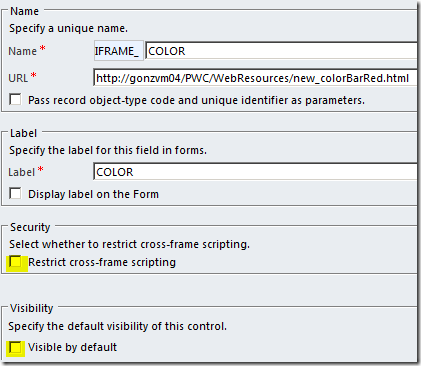
In the URL field you can enter the URL for any of the web resources we created in step1. For now, the bar will not be visible in the form by default. Take note of the name of the IFrame (in this example it is “IFRAME_COLOR”. Now save and publish your form.
3. Add script to update the IFrame according to the priority selected:
Now you just need a client script that will do two things:
Show or hide the color bar depending on whether a priority is selected
Update the IFrame to point to the correct color web resource depending on the priority selected.
This step will depend on the optionset values you have defined for your priorities. You will need to create a new web resource of type JavaScript and include the following code:
You will most likely need to modify a few things like the URL to the HTML web resources and the prioritycode values (1,2,3,4, etc). Now save and publish your JS web resource.
4. Bind the script to the form
Now register your function for the Form onLoad event and the priority field onChange event. To do this, go to the form customization and click on “Form Properties” and add the web resource to the form library. Make sure you register an event for both Form.onLoad and Priority.onChange:
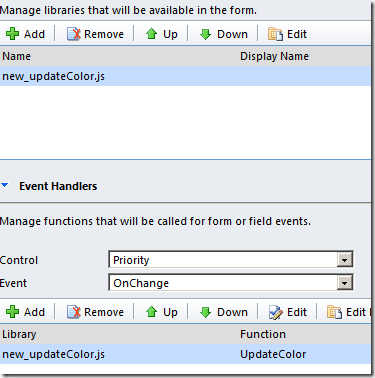
Save and publish the form.
5. Voila
Now each time you update the priority, the corresponding color should be automatically displayed in the form IFrame!
As you might have guessed I am using a IFrame which updates color according to the value of the “Priority” field. These are the simple steps to accomplish the task:
1. Create the color bars:
For each color, create a anew web resource of type HTML. You can use the following example that I used for the red color:
<HTML><HEAD></HEAD>
<BODY bgColor=red></BODY></HTML>
Make sure to paste the HTML code in the “Source” tab and not the “Rich Text” tab. Save and publish your web resources. Take note of the URL for each of your color bars.
2. Add the color bar to the entity form:
Navigate to your entity and customize the form to include an IFrame:

In the URL field you can enter the URL for any of the web resources we created in step1. For now, the bar will not be visible in the form by default. Take note of the name of the IFrame (in this example it is “IFRAME_COLOR”. Now save and publish your form.
3. Add script to update the IFrame according to the priority selected:
Now you just need a client script that will do two things:
This step will depend on the optionset values you have defined for your priorities. You will need to create a new web resource of type JavaScript and include the following code:
function UpdateColor() {
var iframeObject = Xrm.Page.getControl("IFRAME_COLOR");
var entityName = Xrm.Page.data.entity.getEntityName();
var serverUrl = Xrm.Page.context.getServerUrl() + 'WebResources/';
var color = Xrm.Page.getAttribute('prioritycode').getSelectedOption();
if (color == null) {
// Hide the color bar
iframeObject.setVisible(false);
}
else {
iframeObject.setVisible(true);
if (color.value == 1) {
// no color
iframeObject.setSrc(serverUrl + 'new_colorBarWhite.html');
}
else if (color.value == 2) {
// yellow
iframeObject.setSrc(serverUrl + 'new_colorBarYellow.html');
}
else if (color.value == 3) {
// red
iframeObject.setSrc(serverUrl + 'new_colorBarRed.html');
}
else if (color.value == 4) {
// Purple
iframeObject.setSrc(serverUrl + 'new_colorBarPurple.html');
}
}
}
var iframeObject = Xrm.Page.getControl("IFRAME_COLOR");
var entityName = Xrm.Page.data.entity.getEntityName();
var serverUrl = Xrm.Page.context.getServerUrl() + 'WebResources/';
var color = Xrm.Page.getAttribute('prioritycode').getSelectedOption();
if (color == null) {
// Hide the color bar
iframeObject.setVisible(false);
}
else {
iframeObject.setVisible(true);
if (color.value == 1) {
// no color
iframeObject.setSrc(serverUrl + 'new_colorBarWhite.html');
}
else if (color.value == 2) {
// yellow
iframeObject.setSrc(serverUrl + 'new_colorBarYellow.html');
}
else if (color.value == 3) {
// red
iframeObject.setSrc(serverUrl + 'new_colorBarRed.html');
}
else if (color.value == 4) {
// Purple
iframeObject.setSrc(serverUrl + 'new_colorBarPurple.html');
}
}
}
4. Bind the script to the form
Now register your function for the Form onLoad event and the priority field onChange event. To do this, go to the form customization and click on “Form Properties” and add the web resource to the form library. Make sure you register an event for both Form.onLoad and Priority.onChange:

Save and publish the form.
5. Voila
Now each time you update the priority, the corresponding color should be automatically displayed in the form IFrame!
Tuesday, August 2, 2011
Assembly versioning in CRM 2011
A commonly disregarded feature of MS CRM 2011 is the ability to manage different versions of a plugin assembly to control how new releases of an assembly are rolled out to the CRM system and how it affects existing plugins and custom workflow activities. When you build a plugin assembly you can specify the version (in the strong name) as Major.Minor.Build.Revision and there are two key features in CRM that can be leveraged when you build a new version of an existing assembly:
Assembly Update
This feature is particularly targeted to updates in the plugin assembly which are back-compatible with your existing plugin assembly and typically address the following:
- Bug fixes
- Minor changes in the implementation of a plugin or custom workflow activity
In order to use the assembly update feature, you must re-compile your assembly an use a new Build/Revision number, but leave the same Major/Minor version. You can then use the Plugin Registration Tool and select “update” on the plugin assembly. These are the advantages of assembly update:
- New assembly content takes effect immediately after updating the assembly.
- All existing plugin steps and workflows that use the assembly will automatically start using the new version without any additional configuration (even workflows that are suspended will automatically switch to the new version when resumed).
- No need to restart IIS/AsyncService regardless of whether the assembly is registered on disk, GAC or database.

Note that this feature requires the strong name of the plugin assembly to be exactly the same except for the build and/or revision number.
Assembly Upgrade
Assembly upgrade can be used to register a new version of the assembly and have both the old and the new version running side-by-side. This feature is typically used in the following scenarios:
- Adding input/output parameters to custom workflow activities
- Changing signature of the plugin types
- Changes to plugins that are not back-compatible with the previous version.
In order to upgrade a plugin assembly, you must update the Major and/or Minor version of your plugin assembly and register it in CRM as a new assembly (therefore you will have both versions running side by side). Once you register the new assembly you must perform the following actions in order to start using the upgraded version:
- For plugins: Manually re-parent the old plugin steps to the new assembly as required.
- For workflows: Workflows will not automatically use the upgraded version until you explicitly change the version number in the workflow definition. For each workflow that you want to upgrade, you need to de-activate it, edit the custom workflow activity step, select the appropriate version from the drop-down and re-activate the workflow. Existing running instances of the previous workflow will continue to use the old version (e.g. workflow instances that are waiting or suspended will still use the old version when resumed). The upgraded version will only apply to new workflow instances.

Note that the new version will only appear in the workflow designer version drop-down list if the new assembly has the exact same strong name except for the major and/or minor version.
Subscribe to:
Posts (Atom)