Showing posts with label SLA. Show all posts

Thursday, October 6, 2016

Transporting SLAs in a CRM solution

This post explores some of the nuisances when transporting SLAs in a CRM solution. I did most of my tests in CRM 2015 and CRM 2016 environments but behavior might vary between different versions.

When you include an SLA to the solution there are some special things that will happen. In this example, I have a blank solution and I have added only my SLA to the solution. As expected, the only component in the solution is the SLA itself:


However, after you export the solution for the first time, you will notice that magically some processes get added to your solution automatically after export without any indication that this has happened:
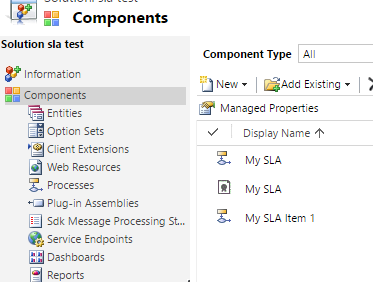

Furthermore, in older versions of CRM (2015) you will also see that the “Process”, “Case” and “SLA KPI Instance” entities get added to the solution magically which can be quite confusing:


But why is this happening? The reason why you see some processes added to the solution is because SLAs are implemented as CRM processes (workflows) behind the scenes, so at the moment you export an SLA, you need to export at the same time the process definitions for the SLA. There wil be one process per SLA plus one additional process for each SLA Item you have added to your SLA (1 item in my example). That is because SLA Items are also implemented as workflows. Now, the question of why we have to surface these implementation details to the user is in my opinion a bug, there is no reason to show the user these components in the solution and should be hidden because they are implementation details of the SLA that happen behind the scenes and causes confusion more than anything about what these processes are. If you try to open one of these processes you will notice that they are read only and completely system managed depending on the SLA and SLA Item definitions that you have provided in the user interface.

Another problem with such implementation is that if you rename the SLA Items, then their corresponding workflow/process is not renamed accordingly which can cause even more confusion since they will keep the original name that was given to the SLA Item during creation. I have even run in a situation in which solution export fails because it could not find the corresponding SLA Item process once I had renamed the SLA Item (although I was not able to reproduce this problem consistently).

The reason why you see the “Case”, “Process” and “SLA KPI Instance” entities added to the solution in CRM 2015 is most likely a bug and something that was fixed in CRM 2016. Even if you remove these entities from the solution, they will get added back automatically next time you export the solution so not worth trying to remove them manually!

Another thing I wanted to explore is how the Business Hours get transported in the solution. For example, I have defined my business hours as follows:


I have found out be inspecting the solution XML that the business hours are not included at all in the solution, therefore when you transport the SLA to another environment the business hours will be blank for the given SLA. You will then need to set it manually in the target environment. I have researched whether I could use the Configuration Migration utility that comes with the SDK in order to migrate business hours and include in the solution deployment package but as it turns out both the Business Hours and the Holiday Schedule are implemented as entries in the “Calendar” entity which is not supported by the Configuration Migration tool, and AFAIK is also not possible to import these using Excel import file. Therefore, you have no option than to re-create these records in your target environment (manually or automate via SDK) and link them to the existing SLA. You might be able to import the individual “Holiday” records to the Holiday Schedule in an automated fashion such as import but I have not validated that far what can be done.

Luckily creating the Business Hours and Holiday Schedule is not a very long task, and you should be able to create them only once in each target environment. After than re-importing an existing SLA should preserve the link to the Business Hours you had set previously.


Monday, September 26, 2016

CRM SLA Failure and Warning times, not what you would expect!

When you configure an SLA item in CRM, you have the option to specify the “Failure” and “Warning” times as a duration.


The format of these fields Is the same as any other CRM duration field, but what does it really mean? For example, if you set it to 10 days, is it 10 calendar days? Is it 10 business days? You might be surprised it is neither!

First let’s backtrack a little bit and look at the SLA definition. At the SLA level you can define “Business Hours” which captures the business days of the week, business hours of the day as well as any holidays during which an SLA should not apply. Let’s see what happens to your 10 day SLA depending on your business hour configuration in different scenarios. For simplicity I will assume you do not have “pause” when the record is on-hold.

1.       No Business Hours
If you leave this “Business Hours” field blank, then the system will assume 24x7 and therefore, the “Failure” and “Warning” times you set are simply calendar days, it will be simply a duration which is quite straight-forward. Therefore, when you create the record, you will have exactly 10 days (240 hours) before the SLA fails.

2.       Business Hours Configured (Work Days only)
In this case you configure your Business Hours only for the work days (e.g. Mon-Fri) but you leave the work hours as 24-hour (i.e. your business day has 24 hours):

In this case, what happens to your 10-day SLA is that it becomes a 10 business day SLA. Therefore, when you create a case, you will have 14 calendar days before the SLA fails because the weekend days will not be counted.

3.       Business Hours Configured (Including Work Hours)
Now this is where things get really messy unexpectedly. Imagine you configure your business hours to be Mon-Fri from 09:00 to 17:00 so that you have 8 working hours per business day. What happens to the 10-day SLA failure?

I create a case and to my surprise, the system gives me almost 42 calendar days to resolve the case before failing SLA:

This seems really random. What happens here is that the “Failure” time of 10 days is actually a duration (not the actual count of calendar or business days). In other words, the SLA will fail after 240 “business hours”. Because I only have 8 business hours per day then this means 30 business days and because of the weekends it ends up giving me almost 42 days. This is definitely not what I would expected when I configured by failure time to 10 days. Therefore, I just decided to leave my work hours as 12am-12am (24 hours) and then I would fall under #2 above in which I get 10 business days for resolving the case as I expected.

Adding holidays to your calendar works similar to the work days, it will just exclude the entire day from the count. Do not expect the timer to “pause” when you are outside of working hours because the timer has actually been increased to account for the time that you will have outside of business hours, so the timer countdown is always real time (duration) and can only pause when you configure pause for “on-hold” status.


I hope you find this useful, I think unless you have really fast SLAs (defined in hours or minutes) it almost makes no sense to think about configuring working hours. My conclusion is that if you SLAs which are defined in number of days you most likely should leave the work hours to 24 hours in order for the timer to make sense. Alternatively if you keep working hours you would need to define your SLA items as a function of business hours, so for my example, if the business hours are from 9am to 5pm then that means that for a 10 business day SLA I would need to define my failure time as 10*(number of business hours per day) = 80 hours. The small caveat here is that if you change your business hours then you need to update all your SLA items as the above formula could have changed. In either case you should still configure your workdays to exclude weekends if desired though.